Directory sync and signature updates: what Workspace admins need to know
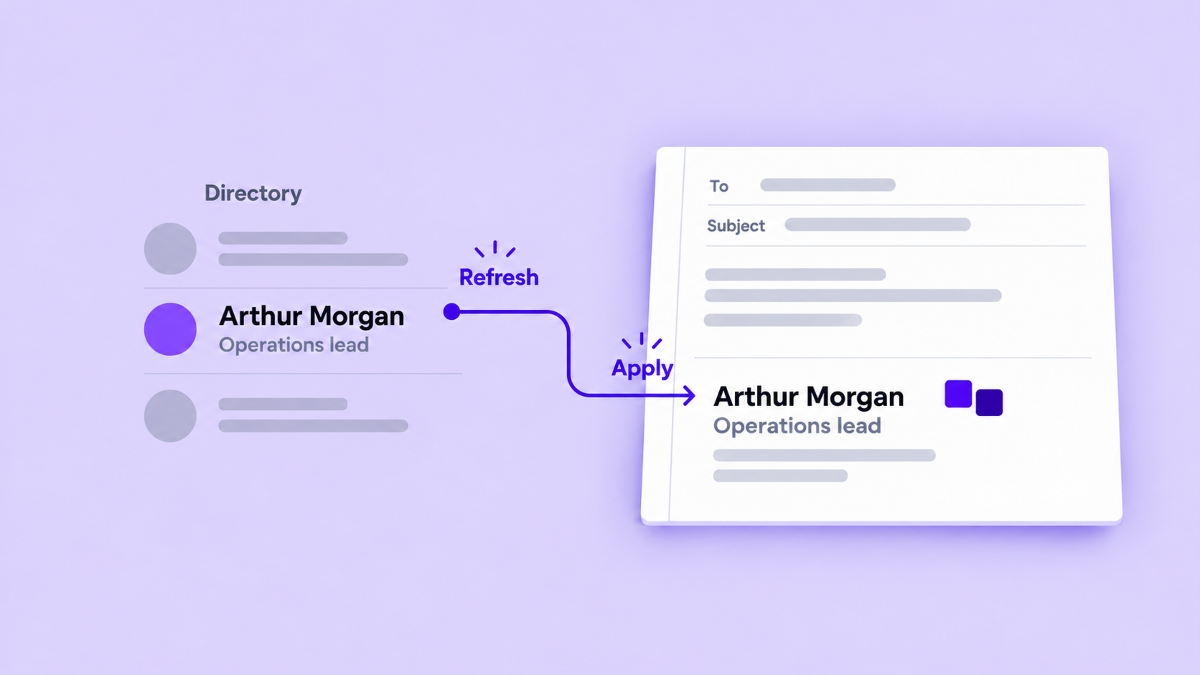
An employee changes roles, a user leaves, or a team starts sending from a shared address. The directory may know about that change before the signature in Gmail does.
Two jobs are involved: a directory refresh updates the information available to your signature system, while signature deployment applies a chosen design and that information to Gmail. Keeping them separate makes it easier to understand what changed and why a signature still looks old.
Separate the source from the result
Think of the workflow in two layers:
Google Workspace user records and aliases are separate pieces of directory information. Google describes a user alias as another address associated with the user's mailbox, while Gmail uses send-as aliases as addresses from which that account can send mail. Gmail also supports a signature setting for each send-as address. See Google's Directory API guide to user aliases and the Gmail API guide to aliases and signatures.
In Signaturify, a directory refresh makes current employee and alias data available for later work. A separate Set Signature operation uses a design, company profile, and audience to create the Gmail update. Refreshing a job title without deploying again can leave the old title in Gmail.
Follow one change through the process
Consider Bacchus Bridge Logistics, a fictional company used here for illustration. Arthur Morgan moves from fleet operations into regional coordination, so his directory title changes while an old regional alias remains relevant for a short handover period.
The administrator can handle the change in four steps:
- Refresh Arthur's selected directory record so the signature system reads the current Google data.
- Review the returned details and the addresses from which he sends.
- Check the shared design and any conditional rows that depend on employee fields.
- Deploy the signature to Arthur's selected sending addresses, or to the wider audience if the design change applies to
the whole team.
If the refreshed record is wrong, fix the source data first. If the data is right but Gmail is unchanged, check the deployment and its transaction result.
Use a targeted refresh for a known user change
A broader sync can help review the managed directory. A targeted manual sync is better when you already know which people need attention.
A targeted manual sync in Signaturify re-reads selected user records from Google before planning the update, which is useful after a name, title, or department change.
Use a targeted refresh when:
- someone joins, leaves, or changes roles;
- a user was renamed in Google Workspace;
- a sending address was added or removed;
- a signature preview shows details that no longer match the directory; or
- you want to verify a small audience before a larger deployment.
Treat renamed and departed users as data changes
When a Workspace user is renamed, Google says the old username is retained as an alias to help maintain mail delivery, and the rename can take time to propagate across services. See Google's user account guidance.
For signature management, check both the current primary address and the addresses that still send on behalf of the mailbox. A stale alias can carry the wrong signature or target an address that no longer belongs in the workflow.
Signaturify's targeted refresh re-reads selected users and invalidates cached aliases when a rename is detected. If Google confirms that an account was deleted, the sync plans that user for removal. If Google returns neither a current record nor a deletion confirmation, the sync reports a failure instead of silently treating the missing response as a deletion.
Apply the current signature to Gmail
Once the data is current, decide what should reach Gmail. In Signaturify, choose the signature design, company profile, and audience, then run Set Signature. A single layout can combine shared content with employee and company fields.
Audience selection can use a domain, organizational unit, Google Group, custom User Group, or individual users, depending on the operation. An organizational unit is a way a Workspace administrator organizes users. A send-as alias is another address a person can use to send mail. Check both when the rollout depends on department, domain, or sending address.
Applying a signature replaces the targeted Gmail signature setting. The deployment is recorded as a transaction, so inspect progress and failures instead of treating submission as proof that every target succeeded.
Signaturify's reusable designs help keep the application step manageable. Use conditional visibility for optional details, such as hiding a phone row when an employee has no direct number. Preview a few representative users before applying the update to everyone.
Choose the right ongoing automation
Use a targeted manual sync when an administrator knows which user records changed and wants current data before planning an update.
Use Auto Sync when the organization needs directory information and aliases refreshed as an ongoing process. Auto Sync is a separate feature from applying signatures and is fully included with your subscription.
Use scheduled signature automation when a supported audience should receive a recurring signature deployment. Signaturify supports daily, weekly, and monthly schedules for this operation. A scheduled run can replace a previous signature assignment, so confirm the signature, company profile, domain, and audience before enabling it.
For example, Bacchus Bridge Logistics might use Auto Sync to keep employee records current, then use a weekly signature deployment for a department that reviews contact details every Monday. Auto Sync still does not deploy a changed signature.
Give every change an owner
Give each part of the process an owner:
- The directory or HR data owner keeps names, titles, departments, and contact details current.
- Marketing or brand owns the shared layout, wording, links, and company profile.
- The Workspace administrator connects the integration, selects the audience, and reviews the deployment result.
Planning a cleaner process for your team? Tell us about your Workspace. Share the domains, audiences, and update patterns you need to manage.
Ready to explore the product? Try Signaturify.