How to keep signatures tidy when employee details are missing
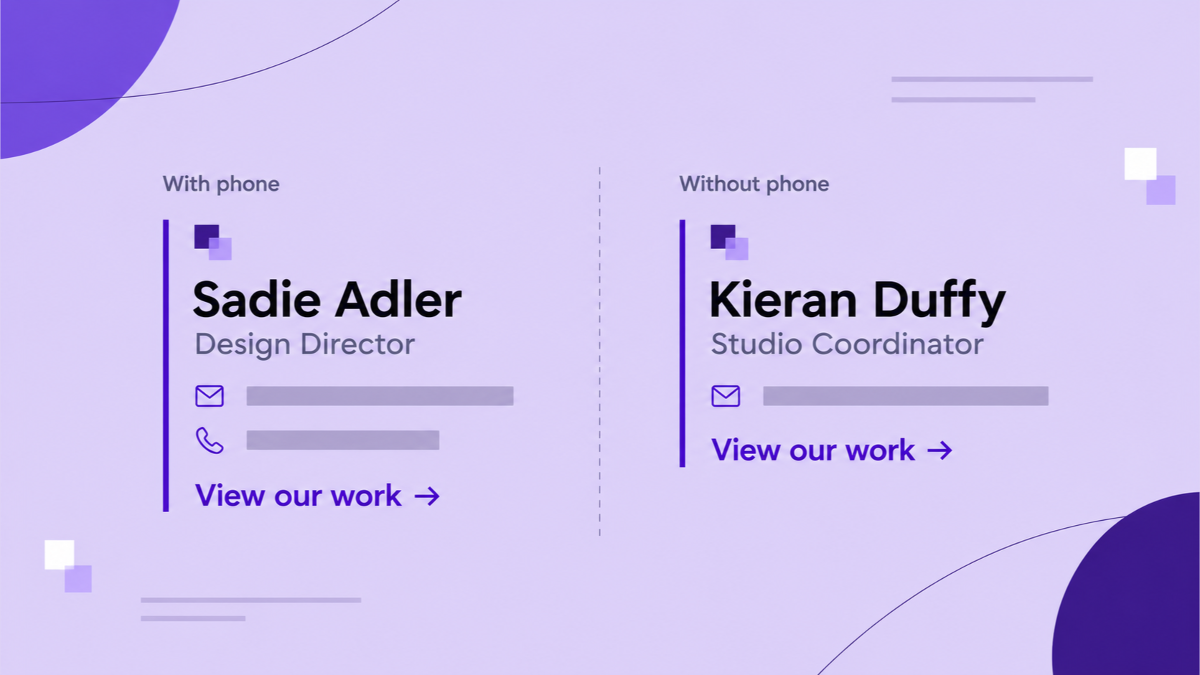
A signature can look polished for one employee and awkward for another. One person has a direct phone number, while a colleague has no number to publish. A fixed layout may leave an empty label, an orphaned phone icon, or a separator with nothing useful beside it.
The solution is to separate two decisions. Hide information that is deliberately optional. Correct information that should be present but is missing or out of date. A reusable design can handle the first decision, while an owner still needs to handle the second.
Decide whether the missing detail is optional
Start by asking why the field is blank. The answer determines whether a visibility rule belongs in the signature.
| Situation | Better decision |
|---|---|
| A consultant does not publish a direct phone number | Hide the phone row when the phone field has no value. |
| A new employee has no job title in the directory | Check the source data and correct it. |
| A company profile has no approved logo | Complete the company profile before using a logo block. |
| A former address remains after a Workspace rename | Refresh the relevant directory record and review the result. |
A phone number is often a deliberate choice. Some teams use a shared office line, some work through email, and some employees should not publish a direct number. A missing name, role, or primary email address is different: those details identify the sender and should not disappear because the layout can hide them.
Signaturify's personalized fields use employee records and company profiles. Conditional visibility changes what the design shows; it does not create or validate a value. Agree with the data owner which fields are required before building the rule.
Build the optional phone row as one unit
For a fictional Owanjila Design Co., imagine a signature with the sender's name and role, followed by a compact contact row. The row contains an email address, a thin separator, and one optional phone unit with a small phone icon, the label “Direct,” and the employee's phone field.
Keep the icon, label, and number together in one group or row, and give that entire optional unit one field-based condition: show it only when the employee has a Phone value. The condition belongs on the group so the icon and label disappear with the number instead of becoming empty decoration.
The editor's Contact Details block uses the same principle for phone, mobile, email, and website lines.
Place the separator immediately before the optional phone group, as in the editor's Compact starter. Use an Auto-hiding separator instead of a normal divider. When the phone group is absent, the separator disappears too, leaving the email and website without an orphaned mark. A normal divider remains visible when optional content is missing.
If the icon and label are separate blocks, keep them in the same conditioned group or give each optional piece the same field rule. Keep the separator immediately before the optional group whose presence it describes.
Preview employees with and without the value
A condition is easier to judge with realistic data than with an empty canvas. Use two illustrative Owanjila Design Co. records:
Sadie Adler, Design Director, with a direct number such as +1 555 014 0137.
Kieran Duffy, Studio Coordinator, without a direct number.
These names and values are fictional examples, not customer data. Compare the same layout with both profiles.
Use the selected employee preview data to compare both versions. Sadie's phone icon, label, number, and separator should appear as one intentional group. Kieran's signature should move cleanly from the identity details to the website or next contact item, with no empty phone line and no orphaned separator.
Use the same check for a long name, a long job title, and a blank optional website or mobile field. This catches wrapping and spacing problems before sharing the design. A preview shows populated data; still send a test message in the clients your team uses.
Fix data problems at the source
Suppose Kieran should have a direct number, but the directory record is blank. Hiding the row keeps the signature tidy, but does not solve the issue. Ask the data owner to update the approved source, then refresh the record.
For selected directory users, Signaturify can refresh target users from Google during a manual sync. If Google cannot confirm a record, the sync reports a failure for review. It does not invent a replacement value.
The same distinction applies to company information. If the company website or logo is wrong, update the company profile and then preview the affected signatures. Use a visibility rule for an approved optional element, not as a way to conceal inaccurate required information.
Save the design, then apply it deliberately
Once both previews look right, save the reusable signature. Saving the design stores the layout and its field rules; it does not by itself change Gmail for a team.
An authorized user can then choose the signature, company profile, and audience in Signaturify and run the signature deployment. Select the people and sending addresses that should receive the update, review the transaction status, and deal with any failures before expanding the audience. Applying a signature replaces the targeted Gmail signature setting, so confirm that the design contains everything those recipients should keep.
This process gives Owanjila Design Co. one maintained layout for people with different contact preferences. Optional details disappear cleanly, while required information remains visible and accountable to its data owner.
Want to review your team's optional fields and directory data? Tell us about your Workspace. Share the fields that vary between employees, the groups you manage, and the signature changes you need to coordinate.
Ready to explore the editor? Try Signaturify.