What belongs in a professional business email signature
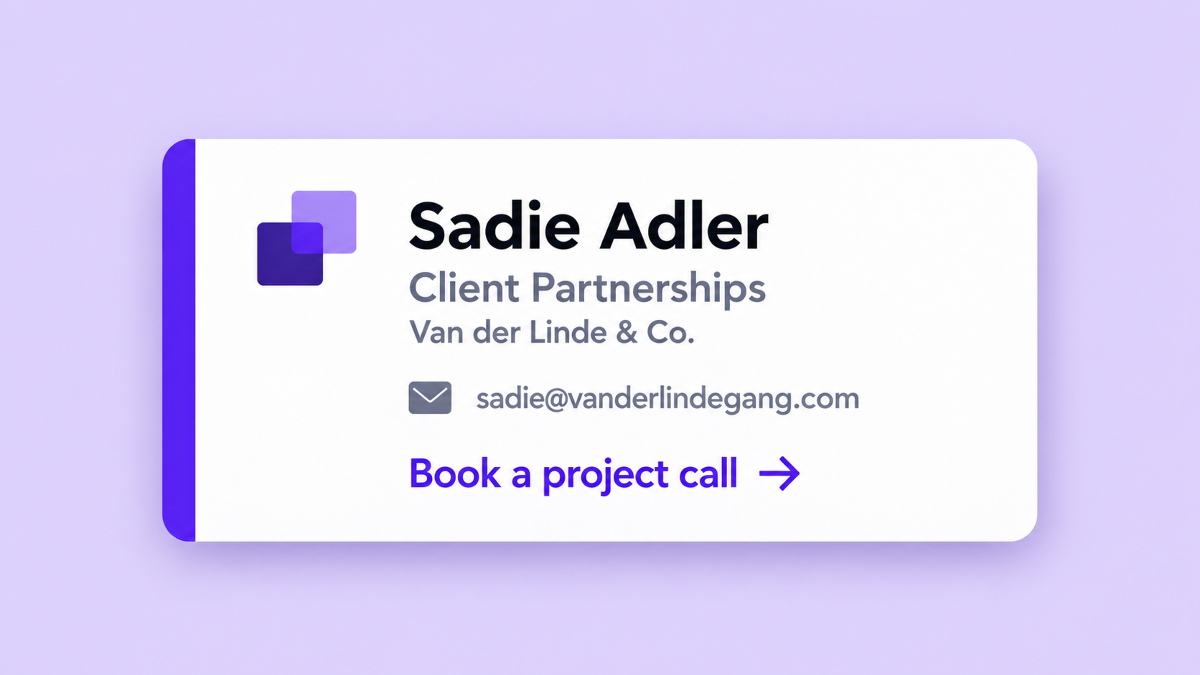
A business email signature can grow one request at a time: a logo, another phone number, a social profile, the latest announcement. Eventually, the recipient has to search for the person behind the message.
Start with the details that help someone recognize you and continue the conversation: your name, role, company, and a useful way to get in touch. Add a clear brand identity and, where it serves the recipient, a relevant next action.
For a team, the design also needs to work when people have different job titles, contact details, and responsibilities. Signaturify lets you build a reusable signature with employee and company fields, then adapt optional content with visibility rules. You can keep a common design while giving each person the details they need.
Start with identity and useful contact details
The right contents depend on what recipients need from the sender. Use this as a starting point:
| Element | What to include |
|---|---|
| Name | The name the recipient should use when addressing the sender. |
| Role and company | A clear job title or team, followed by the organization. |
| Contact route | A direct phone number, work email address, or another appropriate way to continue the conversation. Include only details someone maintains. |
| Website | A relevant company page with a short, recognizable label. |
| Logo | An approved company logo at a size that leaves room for the sender's details. |
| Next action | An optional booking link, resource, or company profile that fits the sender's role. |
A direct phone number earns its place when customers actually call the person. Use an international format if recipients work across countries. An office address can help people who visit your location; a long address adds less value for a fully remote conversation.
You can include the sender's work email address when it helps someone save or share their details. Avoid adding several addresses without explaining which one to use. Every contact route should have a clear purpose.
Decide which details belong in every signature and which are optional before you build the layout. This gives marketing a common design to maintain and gives administrators a clear view of the employee information it needs.
Make the sender easy to find
Give the name the strongest emphasis, then place the role and company nearby. Group contact details together and keep the main link easy to spot. A reader should be able to scan the signature in the same order each time.
Use a small set of type sizes, readable text, and enough spacing between groups. Choose colors with clear contrast against the background. If a title wraps to a second line, let the layout accommodate it instead of shrinking all the text to fit.
Keep essential details as text. A single image containing the name, role, and phone number makes those details depend on the image loading. Gmail, for example, lets recipients choose to ask before displaying external images. Use a logo to support recognition while keeping the sender's identity and contact information readable separately.
In Signaturify's block editor, you can arrange text, images, and links in a shared layout. Insert employee fields for the name and role, and company fields for shared information. When you apply the signature, each person's details populate the design, so you can maintain the layout without typing a separate version for every employee. Once approved, you can apply that design centrally to a selected team.
Choose a next action that fits the conversation
A useful signature link answers a likely next question. Someone discussing a project might need a meeting link. Someone reviewing a proposal might benefit from a relevant work portfolio. For a general business contact, the company website may be enough.
Give one action visual priority. Additional social links can sit quietly beneath the contact details if those profiles are relevant and maintained. You do not need every channel in every signature.
Write link labels that describe the destination or action, such as “Book a project call” or “View our work.” This follows W3C guidance on meaningful link text and gives the reader more information than “Click here.”
Signaturify supports buttons, booking links, and social links, so you can build the appropriate action into the design. A sales signature might include a booking link, while an operations signature keeps a simple company website link. Use those options to reflect how each team works.
See how the contents change by role
These are simplified content examples for a fictional business called Van der Linde & Co. They show the information order, rather than a product screenshot or a customer signature. The addresses are illustrative, and the action labels represent links you would configure.
A signature for someone who books client conversations
Sadie Adler
Client Partnerships | Van der Linde & Co.
sadie@vanderlindegang.com
Book a project call
A signature for an operational contact
Arthur Morgan
Operations | Van der Linde & Co.
arthur@vanderlindegang.com
Visit Van der Linde & Co.
Both can use the same logo, typography, and spacing. Sadie's signature gives a prospective client a way to arrange a conversation. Arthur's directs a contact to the company. Neither needs an empty phone line just to match the other.
If the business uses direct phone numbers, add them where they are useful and available. If a team needs approved company wording, include it in the shared design. The point is to make deliberate variations around a recognizable identity.
Let optional information disappear cleanly
A design that looks tidy with complete sample data can become awkward when a field is empty. You may see a phone label with no number, an isolated icon, or a separator with nothing beside it.
Signaturify's conditional visibility lets you show content only when the relevant employee field has a value. For an optional phone row, keep the number and its label or icon together under the same condition. If a separator belongs only to that row, include it in the conditional content too.
That gives you one reusable design for colleagues with and without a direct number. It also avoids maintaining an extra template solely to remove an empty line.
Choose the rule according to the meaning of the field. An optional phone number can disappear; a missing name or incorrect company detail needs a data correction. Visibility rules help the layout adapt, while your team remains responsible for the information it uses.
Check the design with different people
Before sharing a design across the company, preview it with employee data. Include someone with a long name or job title, someone in another office, and someone whose optional details are blank. Signaturify's employee previews let you inspect those variations before applying the signature.
Then send test messages and check the result where recipients will read it. Review:
- Whether the name, role, and contact route remain easy to find on a narrow screen.
- Whether links open the intended page, profile, or booking destination.
- Whether the essential information is still understandable when images are hidden.
- Whether the signature feels proportionate in a short message and in a reply thread.
An editor preview helps you assess the design; received emails show how it behaves in the email apps you use. Make that check part of approving the shared layout.
Turn the design into a team standard
Once the content and layout work, agree on who keeps them current. Marketing can maintain the brand elements and links. The employee-data owner can keep names, roles, and contact details accurate. Your Workspace administrator can coordinate access and applying the signatures.
With Signaturify, choose the shared design, company profile, and audience, then apply personalized signatures centrally. When your layout or company information changes, update it in one place and deploy the revised signatures to the selected team. The change still needs to be applied to reach Gmail.
Start with the details recipients need, give them a clear order, and let optional content adapt to each person. That is a useful foundation for a signature your whole team can use.
Planning a shared signature for your team? Tell us about your Workspace. Share your team size, the designs you want to standardize, and the details that vary between employees.
Prefer to explore the editor yourself? Try Signaturify.