What Signaturify accesses in Google Workspace
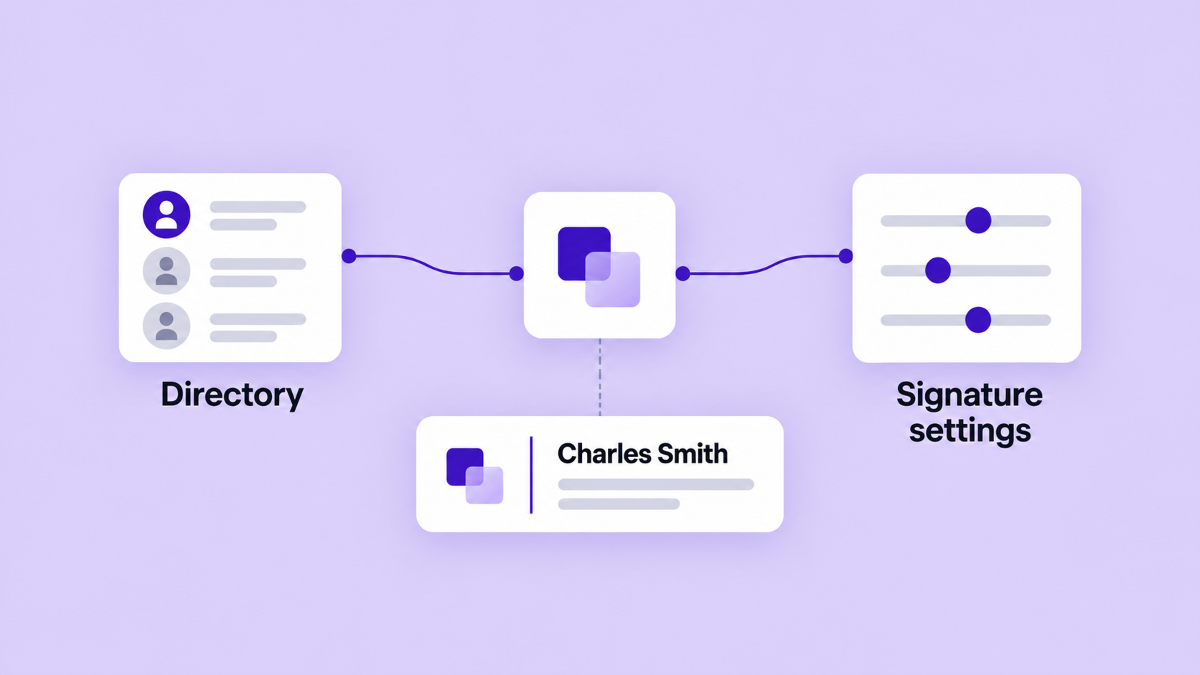
Connecting a signature platform to Google Workspace is an access decision. An administrator should be able to answer three questions before approving it: what information does the product need, what can it change, and what stays outside the workflow?
Signaturify uses Workspace directory information to personalize a shared design, then updates Gmail signature settings for people and sending addresses. It does not need to read the contents of the messages your organization sends or receives to do that job.
Start with the Workspace connection
The connection is completed by a Google Workspace administrator who installs or authorizes the Workspace integration and then completes verification in Signaturify. Signing in with Google identifies the person using Signaturify, but Google sign-in alone does not complete the Workspace installation.
Google's Workspace authorization overview describes an authorization scope as a definition of the data or operation an application can request. With domain-wide delegation, an authorized Workspace application can make API calls on behalf of a specified user, within the scopes approved by the administrator. That lets a signature tool work with selected records and settings without individual setup.
Before approving access, review the current request in the Google Workspace Admin console and involve whoever owns your directory and email policy.
What the integration reads
Signaturify reads the directory and settings information needed to choose an audience and populate a signature. Depending on the operation, that can include:
| Information | Why it is used |
|---|---|
| User identity and profile fields | Names, job titles, departments, phone numbers, addresses, profile photos, primary addresses, and status can populate employee fields or help an administrator review records. |
| Domains and organizational units | These help an administrator organize people and target a deployment. |
| Google Groups and membership | Group membership can identify the people covered by a signature workflow. |
| Gmail send-as settings | Signaturify can identify addresses a user sends from, including applicable aliases, so a deployment can target the right sending address. |
The product processes directory information because it is part of the signature workflow. A name, title, phone number, group membership, or profile photo is still personal information even when it comes from a managed directory. Central management does not make the data anonymous or fix an incomplete directory record. Give the directory owner a clear role and review which fields should appear in a signature.
What it changes in Gmail
When an authorized user selects a design, company profile, audience, and sending addresses, Signaturify queues a deployment. The resulting signature is written to the selected Gmail signature setting for each target address. Google's Gmail documentation supports separate signature settings for different send-as addresses, which is why one employee can have more than one deployment target.
Applying a signature replaces the targeted Gmail signature setting. Keep a copy of content that must be preserved and test a small audience first. The transaction reports progress or a failure for an individual target, so submission is not proof that every target succeeded.
What it does not read
Signaturify's Workspace connection does not use Gmail message, thread, draft, or inbox-reading APIs to manage signatures. It reads Gmail settings related to send-as addresses and updates the signature value in those settings. It does not need the body of an incoming or outgoing email to personalize or apply a signature.
Understand scopes and actual use
Permissions should be read carefully. A scope describes what an API credential may be allowed to request; it is not a
complete activity log. Google's Gmail API scope guide
classifies gmail.settings.basic as access to Gmail settings and filters, and gmail.settings.sharing as access to
sensitive mail settings. Signaturify uses Gmail settings calls to list send-as addresses and update a selected
signature.
The Directory API scopes cover the Workspace users, groups, group membership, organizational units, and identity information needed for synchronization and targeting. Some requested permissions are broader than a read-only label: Google's Directory API scope guide documents the user scope as covering user and user-alias operations. In the signature workflow, directory calls retrieve records and group structure for personalization and audience selection, while Gmail settings calls handle signature management. In this workflow, those calls support signature administration rather than user or group administration.
When IT reviews an integration, ask both what the approved scopes permit and which operations the product uses. Revisit the current installation details if your organization's policy changes.
Set responsibilities, then share access
Before connecting Signaturify, agree on who owns these responsibilities:
- The Workspace administrator connects and verifies the integration and can coordinate audience selection.
- The directory owner keeps names, roles, contact details, and group membership current.
- Marketing or brand maintains the design, wording, links, and company profile.
- An authorized Signaturify editor can maintain designs, prepare or run deployments, and review transaction results according to your team's process.
These are planning responsibilities, not rigid product roles. A Workspace administrator is required for the connection and verification, while delegated editor access lets an authorized colleague work inside Signaturify. Editor access is application access; it does not give a colleague Google super-admin privileges or access to customer email messages.
If you are evaluating a central signature workflow, Tell us about your Workspace. Share your domains, audience structure, and the fields your team needs to manage. Try Signaturify when you are ready to explore the product.